The Intune Assignment Filter Boundary That Only Exists in the UI
Targeting is where Intune is won or lost, and assignment filters are one of the best things to happen to it. A dynamic group can express most of what you need, but you wait for it: membership is evaluated in the background, and a freshly enrolled device sits outside the group until that catches up. A filter is evaluated against the device’s own properties at assignment time, so there is nothing to wait for.
The real strength is that filters do not replace groups, they stack on top of them. Assign to a dynamic group and filter within it. Or assign to a group of users and filter on device properties, so a policy follows people around but only ever lands on the hardware you meant. That is an extra layer of flexibility over everything you already have.
Every filter is also bound to a platform. That boundary turns out to live in exactly one place: the dropdown you pick it from.
Table of Contents
- What an assignment filter gives you
- The one thing the picker will not offer
- How a mismatched filter breaks your targeting
- The portal shows it, then writes it back
- Finding it in your own tenant
- The screenshots
- Conclusion
What an assignment filter gives you
A filter is a rule over device properties, written once and reused on as many assignments as you like. You point a policy at a group, then layer the filter on that assignment to narrow it: include only the devices matching the rule, or exclude the ones that do.
What makes it powerful is that the group and the filter answer different questions. The group says who, the filter says on what. So you can say things like:
- Apply this to everyone in Marketing, but only on their personal devices, so it never lands on a shared or kiosk machine
- Apply this only to devices from one enrollment profile, so everything enrolled through the others is left alone
- Keep Cloud PCs out of an assignment that would otherwise sweep them up
None of those need a new group. You are not restructuring anything, you are adding a condition to an assignment you already have.
Every filter carries a platform, set when you create it. That platform is not cosmetic: it decides which properties the rule editor offers you, and it decides which filters appear when you assign a policy.
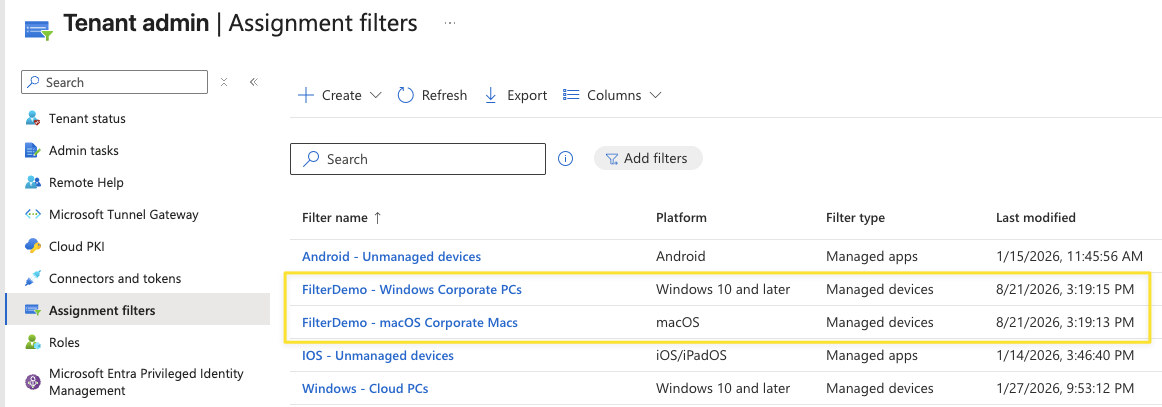
Screenshot 1 - Both filters in the tenant list, with their Platform column.
For this post I built a small scaffold in a lab tenant: two filters, two empty groups and two Settings Catalog policies. The macOS filter matches (device.manufacturer -eq "Apple") and the Windows one matches (device.manufacturer -eq "Dell Inc."). Both rules deliberately use device.manufacturer. Remember that.
The one thing the picker will not offer
Open the Windows policy, go to its assignment, and open the filter picker. Only the Windows filters are listed. The macOS filter is not there and there is no way to select it. That is correct, and it is clearly intentional: the Microsoft admin center is deliberately shielding you from a combination that should not exist.
Graph does not participate in that. It never receives the constraint in the first place, so it has nothing to check against and simply carries out the request. An assignment expresses a filter as two properties on the target, an ID and a mode, and nothing in the payload mentions a platform at all:
$body = @{
    assignments = @(
        @{
            target = @{
                '@odata.type'                              = '#microsoft.graph.groupAssignmentTarget'
                groupId                                    = $groupId
                deviceAndAppManagementAssignmentFilterId   = $macOSFilterId
                deviceAndAppManagementAssignmentFilterType = 'include'
            }
        }
    )
}

# $policyId here is a policy with platforms = windows10
Invoke-MgGraphRequest -Method POST `
    -Uri "https://graph.microsoft.com/beta/deviceManagement/configurationPolicies/$policyId/assign" `
    -Body ($body | ConvertTo-Json -Depth 100) -ContentType 'application/json'
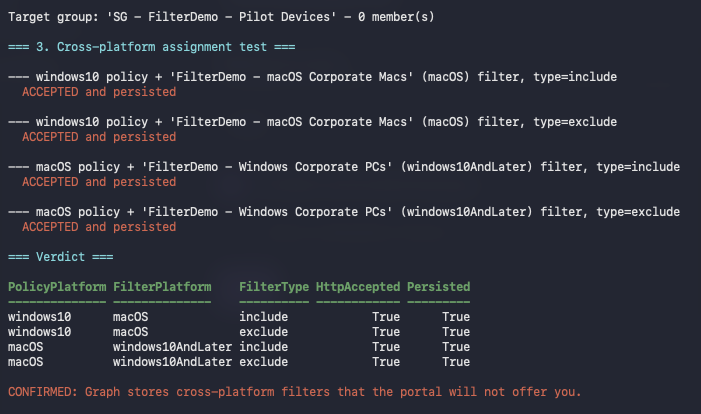
It is on Microsoft Intune to check whether that filter belongs on that policy. It does not check. The call returns success, and more importantly the value is still there when you read it back. That distinction matters, because an API that accepts a value and silently drops it is its own kind of bug and looks identical from the outside.
Screenshot 2 - Four cross-platform assignments, all accepted, all still there after a read-back.
Here is one of the two assignments on FilterDemo - Windows Security Baseline, a policy whose platforms value is windows10, where 983bb135-... is the macOS filter:
{
  "@odata.type": "#microsoft.graph.groupAssignmentTarget",
  "deviceAndAppManagementAssignmentFilterId": "983bb135-92ad-4155-8807-7664008466ec",
  "deviceAndAppManagementAssignmentFilterType": "include",
  "groupId": "83bdd559-ae02-44f4-a31e-a0f3df155234"
}
How a mismatched filter breaks your targeting
It would be easy to shrug this off. A macOS filter can never match a Windows device, so surely it is inert?
It is not, and this is the part I found most interesting. Graph will tell you which properties each platform supports, through getPlatformSupportedProperties, and the two lists almost completely overlap:
| Properties | |
|---|---|
| Shared by both | deviceName, manufacturer, model, deviceCategory, osVersion, operatingSystemVersion, deviceOwnership, enrollmentProfileName, cpuArchitecture |
| macOS only | isDeviceAttested |
| Windows only | isRooted, isTpmAttested, deviceTrustType, operatingSystemSKU |
Nine of the ten properties a macOS filter can use also exist on Windows. The platform value on a filter is not a constraint on the rule language, it is metadata that drives the picker. A rule written for one platform is, in the vast majority of cases, perfectly valid syntax on the other.
That changes the failure mode. A cross-platform filter is not dead weight Intune ignores, it is a real scope control sitting on your assignment where you cannot see how it got there. And the two modes fail in opposite directions:
- An include filter narrows an assignment to whatever its rule matches. Aim one at the wrong platform and there is nothing for it to match, on a policy that still reports as assigned.
- An exclude filter carves devices out of an assignment. Aim one at the wrong platform and there is nothing to carve, on a policy you believe has an exception in place.
Neither announces itself.
The portal shows it, then writes it back
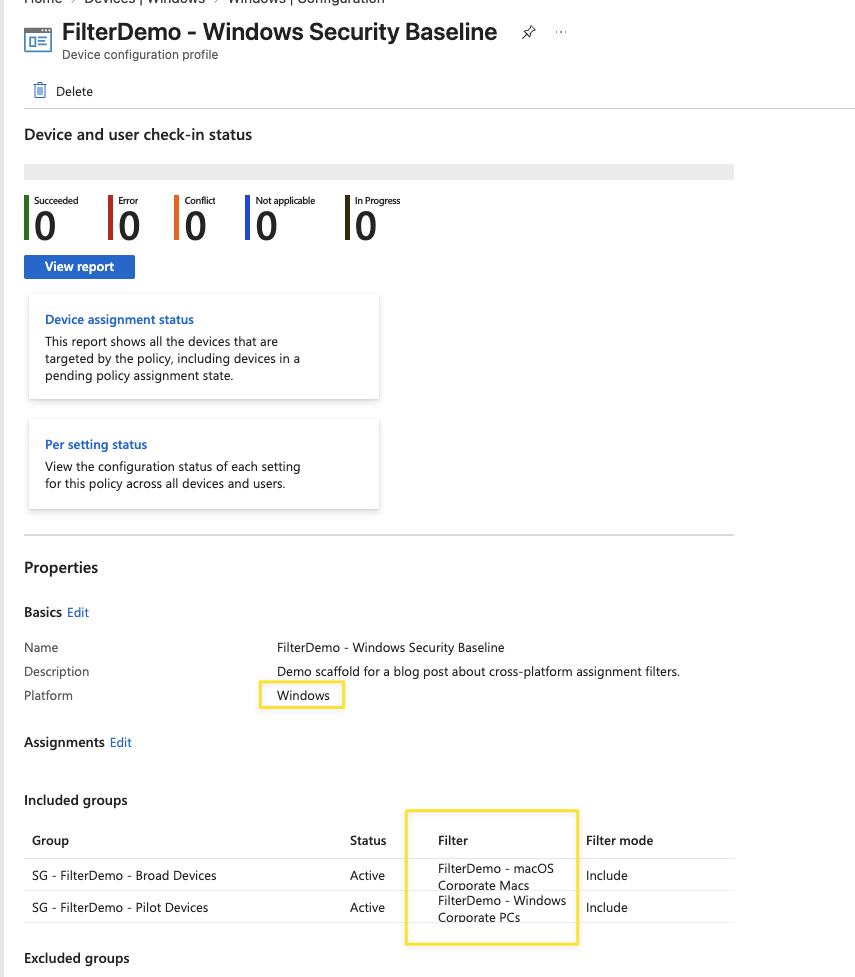
This is where it stops being an API curiosity. Here is that Windows policy with two assignments: a correctly matched Windows filter on one group, and the macOS filter on another.
Screenshot 3 - Platform reads Windows. One row carries a Windows filter, the other a macOS filter. Same table, same presentation, both Active.
It renders as a healthy assignment
No warning, no badge, no greyed-out row. Both are listed by name with a status of Active. Nothing in the admin center distinguishes the assignment you are allowed to make from the one you are not.
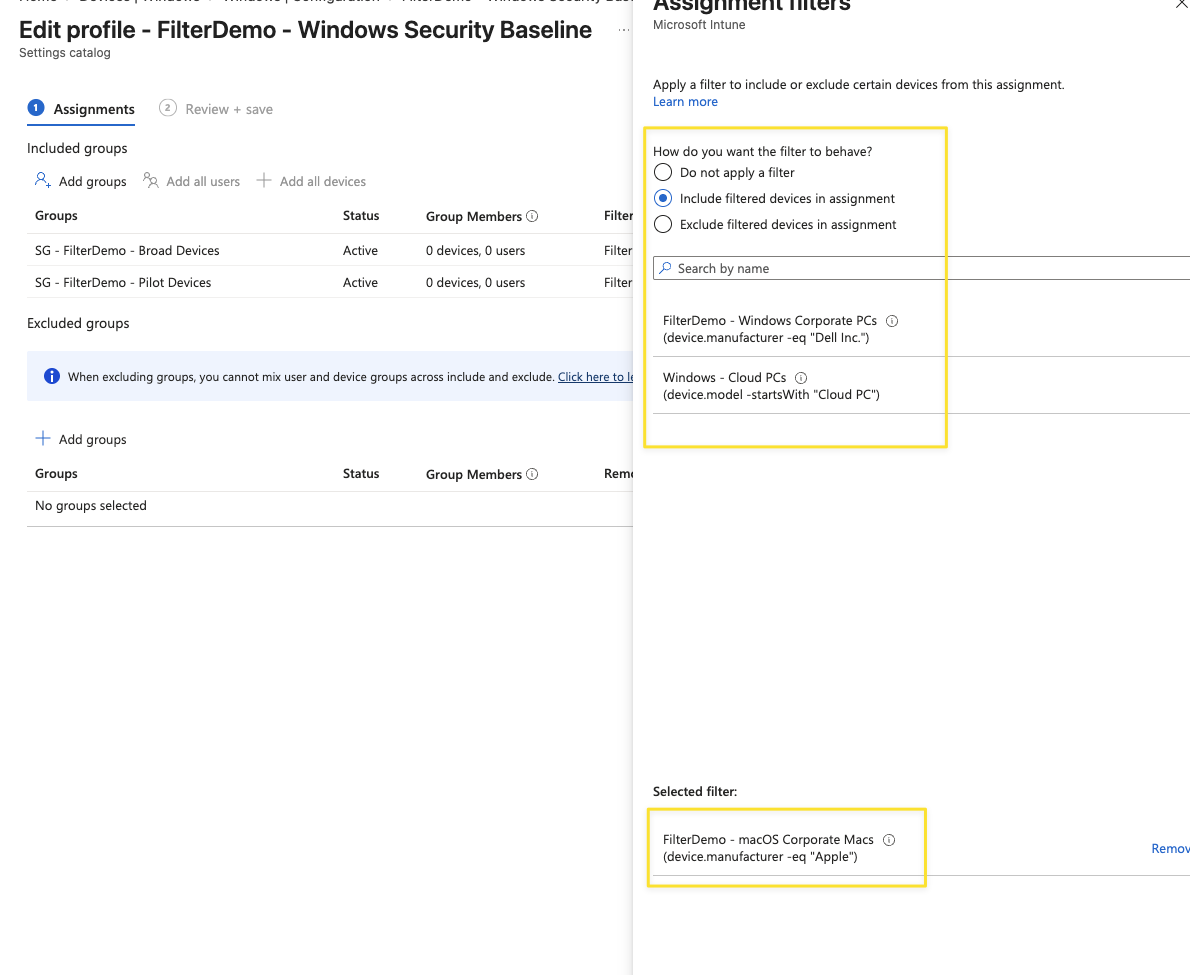
Open the filter panel on that second assignment and the whole contradiction fits on one screen. The mode radio is correctly pre-selected from the API value. The list below it does not contain the filter that is currently applied. And at the bottom the portal holds the macOS filter in its Selected filter box, offering only Remove.
Screenshot 4 - The picker lists only Windows filters, while the Selected filter box below it holds a macOS filter, offering only Remove.
Look at the rules in that panel. The offered Windows filter reads (device.manufacturer -eq "Dell Inc.") and the retained macOS filter reads (device.manufacturer -eq "Apple"). Same property, same syntax, same rule language. The only thing separating them is a platform label that the picker honours and nothing else does.
It writes the mismatch back
So the next thing to test was what the portal does if you simply re-apply that assignment from the UI. Not editing it, not fixing it, just walking the same path an admin walks on any normal change: open the assignment, open the filter panel, leave everything as it is, Select, then Review + save.
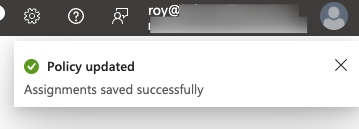
Screenshot 5 - Saving a Windows policy whose assignment carries a macOS filter. The portal is satisfied.
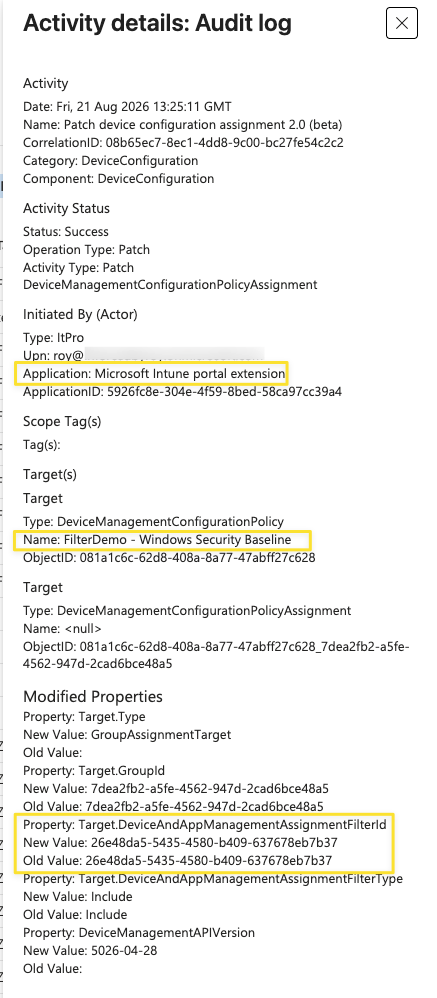
That was not a UI-only no-op. The audit log records a write, attributed to the portal itself:
Screenshot 6 - The audit event for that save. Every old and new value is identical, and the write is attributed to the Microsoft Intune portal extension.
Every property in that event has an identical old and new value. Nothing changed, nothing needed changing, and the portal patched it anyway. I ran the harder version on a throwaway policy too, changing only the mode from include to exclude, and there the audit event showed the macOS filter’s own ID re-submitted on both sides. The portal does not merely tolerate the value, it hands it back to the API.
Finding it in your own tenant
This is trivially detectable, just not from the admin center. There is no column, filter or report that surfaces it, so you have to ask Graph: pull every policy with its assignments, pull every filter, join them on the filter ID and compare the two platform values.
I wrapped that up as a read-only script. It creates nothing, changes nothing and deletes nothing, it just reports. It handles the two things that trip up a first attempt: filter platforms and policy platforms use different vocabularies, so a plain string comparison reports false positives on perfectly healthy assignments, and a deleted filter leaves its ID behind on the assignment so the lookup misses rather than resolving.
Download Find-IntuneCrossPlatformFilters.ps1
./Find-IntuneCrossPlatformFilters.ps1
It needs the Microsoft.Graph.Authentication module and the DeviceManagementConfiguration.Read.All scope. Worth adding to whatever tenant health check you already run.
The screenshots
Use the arrows or dots to step through, and the expand icon for a full-screen view.
- Both filters in the tenant list, with their Platform column.
- Four cross-platform assignments, all accepted, all still there after a read-back.
- Platform reads Windows. One row carries a Windows filter, the other a macOS filter. Same table, same presentation, both Active.
- The picker lists only Windows filters, while the Selected filter box below it holds a macOS filter, offering only Remove.
- Saving a Windows policy whose assignment carries a macOS filter. The portal is satisfied.
- The audit event for that save. Every old and new value is identical, and the write is attributed to the Microsoft Intune portal extension.
Conclusion
The lesson is not really about filters. The admin center is a shell around an API, and a fair amount of what looks like a rule of Intune turns out to be a rule of that shell. Pull the two apart and the safeguards do not come with you: the API underneath accepts what the portal would have refused, and says nothing about it. So read “the UI does not offer it” as “nobody checked this below the UI”. No automation inherits those safeguards for you, which makes them yours to build.
Run the script against your own tenant. Not because you certainly have one of these, but because you cannot see it if you do.
References
- Create assignment filters in Microsoft Intune
- Assignment filter properties and operators reference
- Platforms and policy types supported by assignment filters
- getPlatformSupportedProperties function - Microsoft Graph beta
- deviceManagementConfigurationPolicyAssignment resource type - Microsoft Graph beta