MacPPPC: Build and Deploy macOS PPPC Profiles to Intune from Your Browser
Every Mac admin knows the scene. A user is on a call, tries to share their screen, and hits a permission prompt. They call you to fix it, restart the app, and rejoin late. Or they shrug it off, finish the call without sharing, and ping you afterwards to sort it out. Either way the work didn’t happen on time - and that screen-recording prompt is just one of countless macOS permissions that behave the same way. Intune can’t push most of them directly. Every app that isn’t natively supported has to be configured by hand, either as a .mobileconfig custom profile or as a Settings Catalog policy, and both mean wrestling with raw XML or JSON that you build yourself.
The fix for all of this is a PPPC profile, but Intune gives you no UI for building one. You either copy XML from a blog post and pray, or you reach for Jamf. Neither is great.
That’s the gap MacPPPC closes. It’s a free, fully browser-based tool that builds the .mobileconfig for you and deploys it directly to Intune over Microsoft Graph - using your own Entra ID sign-in. No backend, no Jamf, no manual XML. It’s live at macpppc.com.
Table of Contents
- What is MacPPPC?
- A quick refresher on PPPC and TCC
- Requirements
- How it works
- The Apple rules it enforces for you
- Security and privacy
- Required Entra permissions
- Conclusion
What is MacPPPC?
MacPPPC is a single-page web app that does two things. First, it builds a macOS Privacy Preferences Policy Control profile that pre-approves an app’s access to protected resources so your users never see the prompt. Second, it pushes that profile straight into Intune - either as a classic macOSCustomConfiguration custom profile or as a modern Settings Catalog policy - complete with scope tags, deployment channel, and assignments.
The whole thing runs client-side in React. Profiles are generated in your browser, and the Intune deployment happens directly between your browser and graph.microsoft.com. There is no server in the middle, no telemetry, and nothing to install.
What it gives you:
- A point-and-click builder for all 24 PPPC services Apple exposes to MDM - Accessibility, Full Disk Access (and the granular Desktop/Documents/Downloads/Network/Removable/Admin folder variants), Camera, Microphone, Screen Recording, Input Monitoring, Bluetooth, Contacts, Calendars, Reminders, Photos, Media Library, Speech Recognition, Apple Events automation with receiver-app pairing, and more.
- 87 prebuilt apps, each with its designated code requirement already verified - everything from 1Password, Adobe Illustrator, and Zoom to AnyDesk, Arc, and BeyondTrust. The common ones are a single click; for anything else, drop in an
Info.plistor a zipped.appbundle and it reads the designated requirement for you. - Direct Intune deployment over Graph in either format - a classic custom profile or a Settings Catalog policy - with scope tags, device or user channel, and full assignment control (none, all users, all devices, or groups with include/exclude and per-group assignment filters).
- A live preview of exactly what’s being generated - XML for a custom profile, or JSON when you target the Settings Catalog - before anything leaves your browser.
- No Client Secret. It uses the SPA + PKCE OAuth flow, so only your Entra app’s public Client ID is ever involved.
A quick refresher on PPPC and TCC
If you live mostly in the Windows side of M365, this is the bit worth slowing down for. macOS protects sensitive resources - the camera, the microphone, your files, screen contents - behind a subsystem called TCC (Transparency, Consent, and Control). When an app first touches one of those resources, macOS asks the user to allow or deny it.
That’s fine for one Mac. Across a fleet it’s a support nightmare: users deny by accident, apps break, and there’s no consistency. PPPC is Apple’s MDM answer. A PPPC profile tells the Mac, ahead of time, “this specific app, identified by its code signature, is allowed (or denied) this specific resource.” The prompt never appears, and the decision is yours, not the user’s.
The catch is that the profile has to be exactly right. Each app is pinned to a designated code requirement - a signature string that proves the binary is the genuine, untampered app. Each permission maps to an exact Apple TCC service name like SystemPolicyAllFiles or ScreenCapture. One typo and the profile silently does nothing. Now multiply that by every app you need to cover and every Mac in your fleet - by hand it’s hours of fiddly, error-prone work, repeated per app. MacPPPC fills in the code requirements and service names for you, and lets you configure every app and permission in one bulk pass instead of one painful profile at a time.
Requirements
Here’s the best part: nothing. You just open it in a modern browser and it’s working. To deploy straight to Intune you only need:
- An Entra ID account with rights to create device configuration profiles in Intune (Intune Administrator, or a custom role with the scopes below)
- Admin consent for the delegated Graph scopes the first time it’s used in your tenant
And if you just want the profile to upload by hand, you don’t even need to sign in - build it, download it, done.
How it works
The app is one page in two steps.
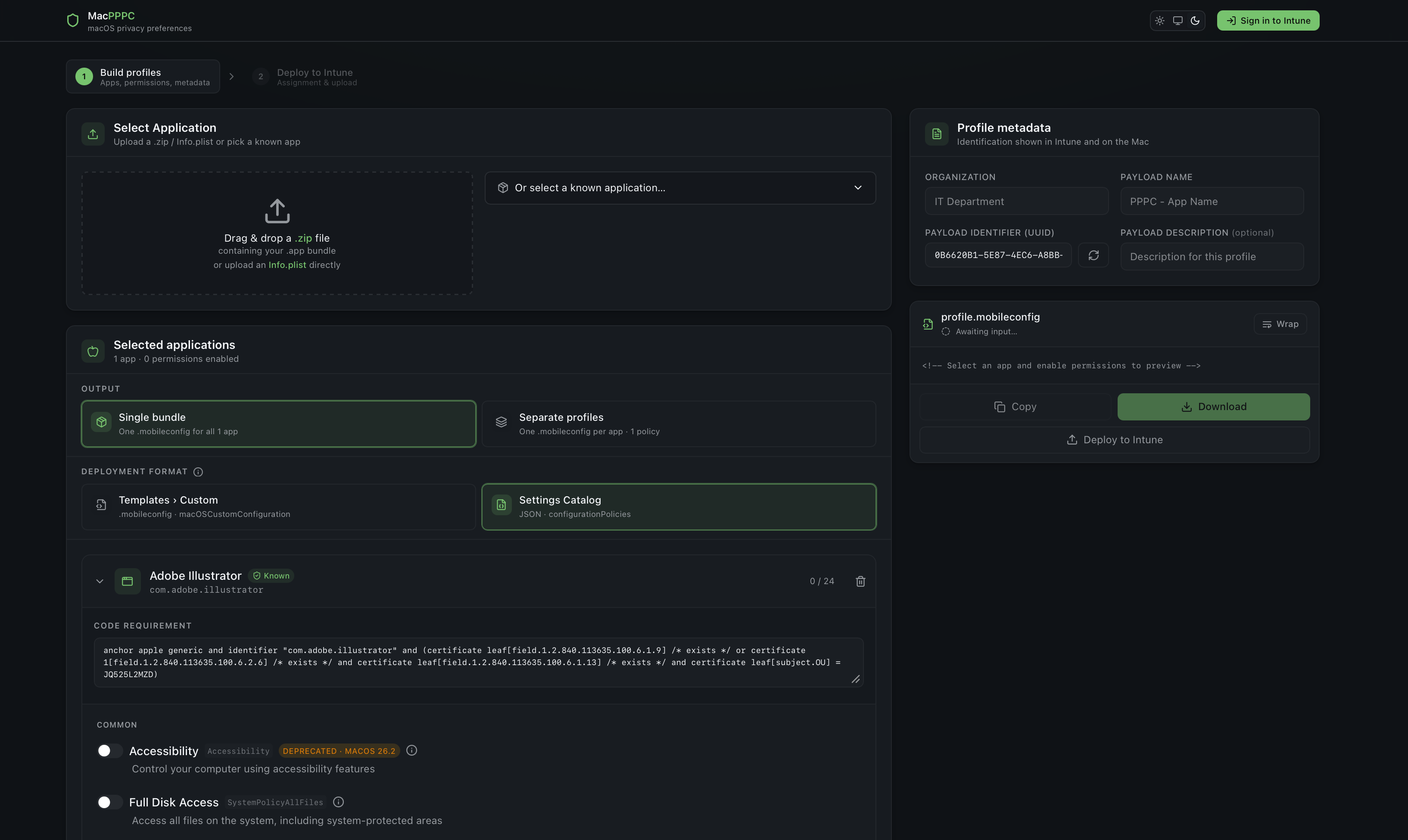
Step 1: Build the profile
- Add your apps. Drag-and-drop a
.zipof an.appbundle, drop anInfo.plistdirectly, or pick from the catalog of 87 prebuilt apps. Uploaded apps are matched against the catalog by theirCFBundleIdentifier, and if there’s a match the canonical code requirement is filled in automatically. - Toggle the permissions you want per app. The authorization dropdown (Allow / Allow standard user / Deny) is constrained automatically by Apple’s rules - more on that below.
- Pick the deployment format. Choose a classic custom profile (
.mobileconfig) or a Settings Catalog policy (recommended). The Settings Catalog is the modern path Microsoft is steering everyone toward - it’s understood natively by Intune, re-importable, and cleaner to manage than a raw custom-config blob. - Pick an output mode. Single bundle puts every app into one profile (the default), or Separate profiles generates one per app, packaged as a ZIP and deployed as separate Intune policies.
- Watch the live preview. The right rail shows the generated payload with syntax highlighting - XML for a custom profile, or JSON if you’re targeting the Settings Catalog - so you can verify it before you deploy.
Here’s a trimmed example of a single-app payload as a classic custom profile (.mobileconfig) - one com.apple.TCC.configuration-profile-policy payload with a Services dictionary keyed by Apple’s exact TCC service names:
<key>Services</key>
<dict>
  <key>ScreenCapture</key>
  <array>
    <dict>
      <key>Identifier</key>
      <string>us.zoom.xos</string>
      <key>IdentifierType</key>
      <string>bundleID</string>
      <key>CodeRequirement</key>
      <string>identifier "us.zoom.xos" and anchor apple generic ...</string>
      <key>Authorization</key>
      <string>AllowStandardUserToSetSystemService</string>
    </dict>
  </array>
</dict>
The exact same intent, expressed as a Settings Catalog policy, is JSON instead - posted to /beta/deviceManagement/configurationPolicies. It’s more verbose because every setting is a typed Graph instance, but it’s what Intune understands natively and what you can re-import later (always-null template fields trimmed here for readability):
{
  "name": "PPPC Configuration",
  "platforms": "macOS",
  "technologies": "mdm,appleRemoteManagement",
  "roleScopeTagIds": ["0"],
  "settingCount": 1,
  "settings": [
    {
      "id": "0",
      "settingInstance": {
        "@odata.type": "#microsoft.graph.deviceManagementConfigurationGroupSettingCollectionInstance",
        "settingDefinitionId": "com.apple.tcc.configuration-profile-policy_services_screencapture",
        "groupSettingCollectionValue": [
          {
            "children": [
              {
                "@odata.type": "#microsoft.graph.deviceManagementConfigurationChoiceSettingInstance",
                "settingDefinitionId": "com.apple.tcc.configuration-profile-policy_services_screencapture_item_authorization",
                "choiceSettingValue": {
                  "value": "com.apple.tcc.configuration-profile-policy_services_screencapture_item_authorization_2",
                  "children": []
                }
              },
              {
                "@odata.type": "#microsoft.graph.deviceManagementConfigurationSimpleSettingInstance",
                "settingDefinitionId": "com.apple.tcc.configuration-profile-policy_services_screencapture_item_identifier",
                "simpleSettingValue": {
                  "@odata.type": "#microsoft.graph.deviceManagementConfigurationStringSettingValue",
                  "value": "us.zoom.xos"
                }
              }
            ]
          }
        ]
      }
    }
  ]
}
That choice value ending in _2 is the Settings Catalog way of saying Allow standard user to enable - the exact same authorization the XML expressed as AllowStandardUserToSetSystemService. MacPPPC generates whichever one you pick; you never hand-write either.
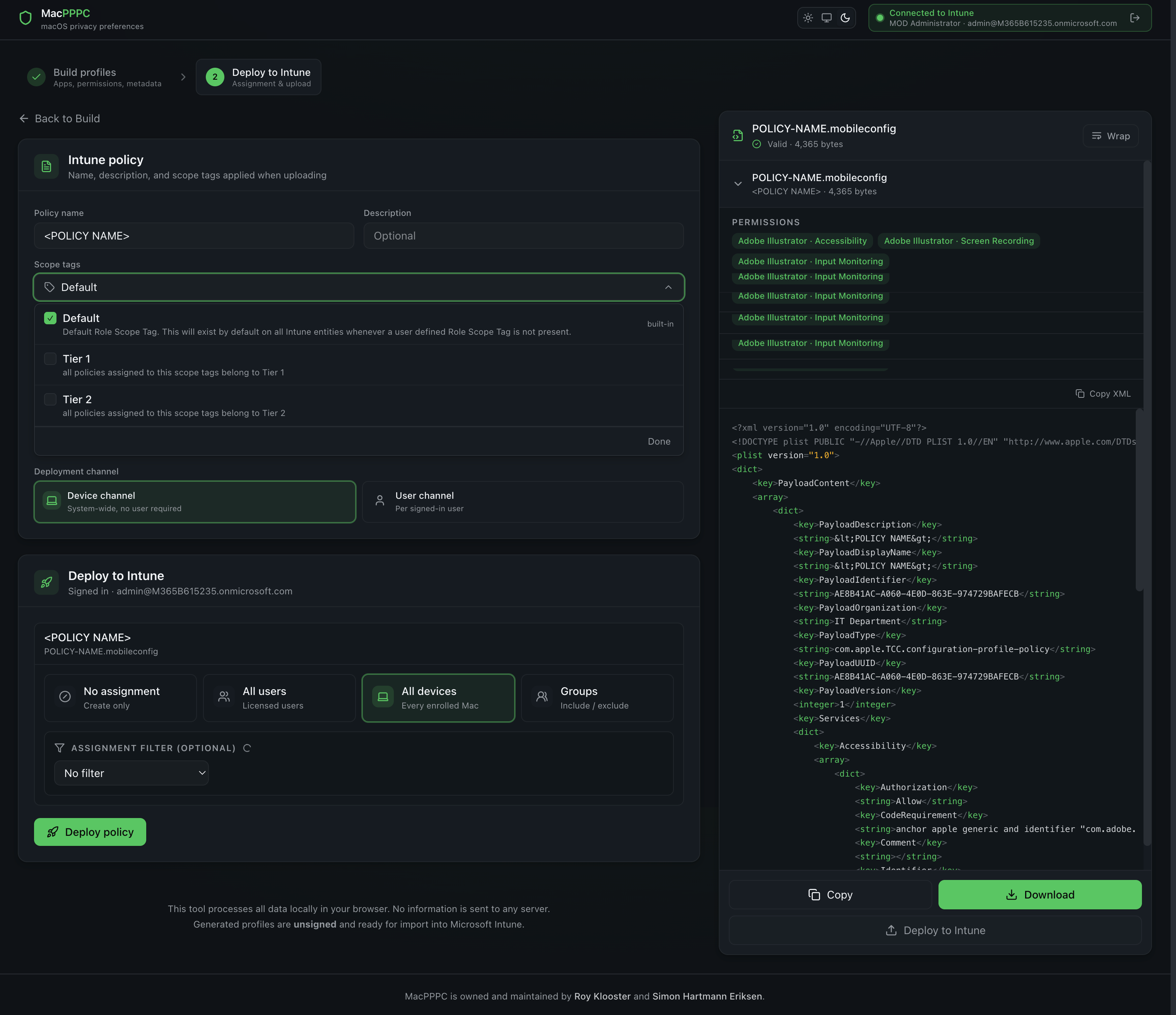
Step 2: Deploy to Intune
- Sign in with Entra ID using the button in the top-right. MSAL handles the redirect and your tokens stay in your browser.
- Name each policy. In bundle mode that’s one row. In separate mode it’s one row per app, plus an optional bulk-rename pattern using
{appName}and{bundleId}placeholders. - Pick scope tags (multi-select, defaults to Default) and the deployment channel - device or user - per policy.
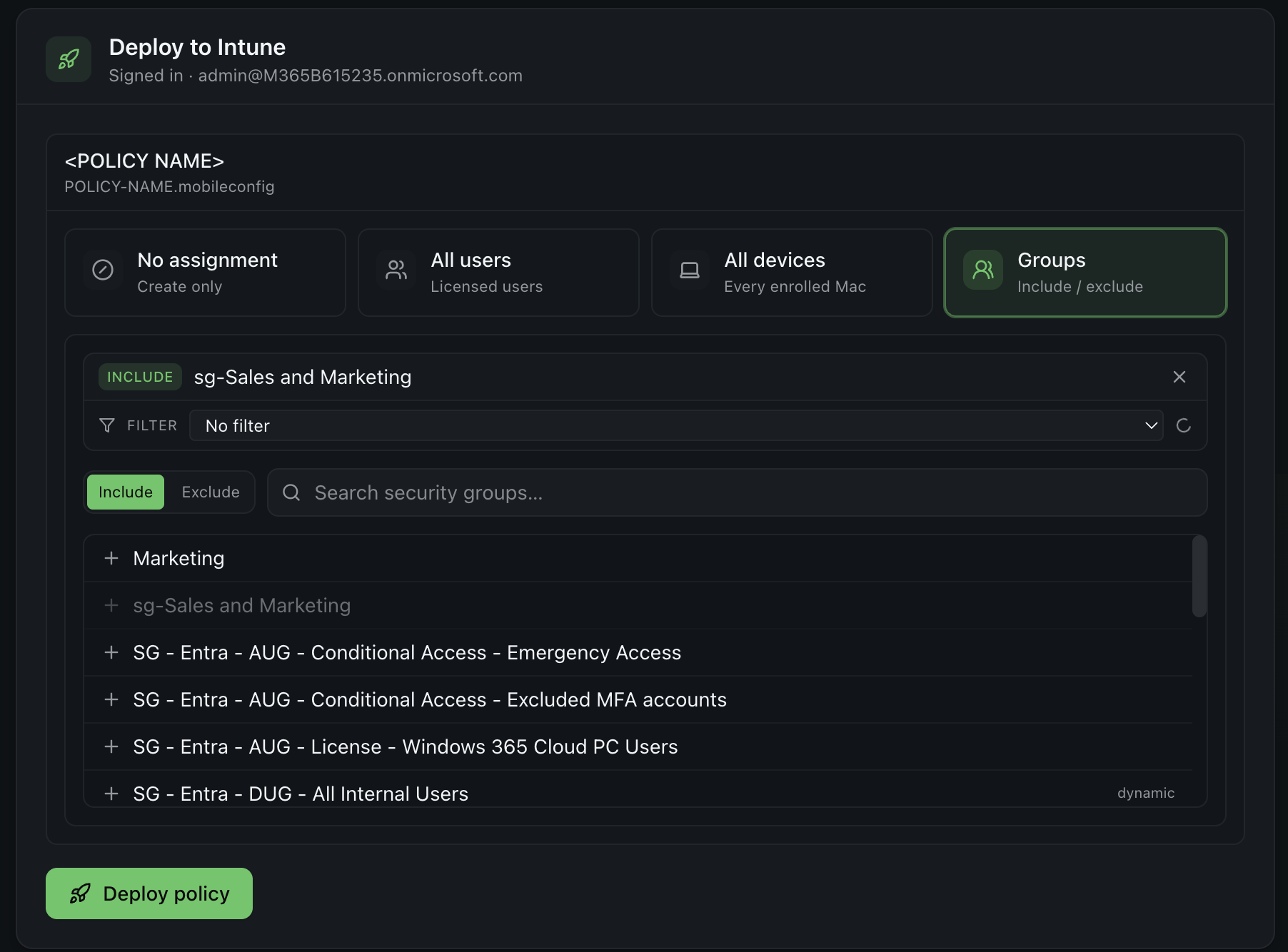
- Configure the assignment per policy: none, all users, all devices, or specific groups with include/exclude. Each include group can carry its own assignment filter, and Copy to all mirrors one policy’s assignment onto every other.
- Click Deploy. Each policy is created via Graph - a
macOSCustomConfigurationunder/beta/deviceManagement/deviceConfigurationsfor a classic profile, or a Settings Catalog policy under/beta/deviceManagement/configurationPolicies- then assigned via the matching.../assigncall. Results appear inline with deep links straight to the Intune portal.
Or just download it
Not ready to give a browser tool access to your tenant? Skip the sign-in entirely. The Download button hands you the same output (a .mobileconfig for a custom profile, or a Settings Catalog JSON you can pull in through Intune’s Import policy button), ready to upload by hand. You get the generator without ever connecting Graph.
The Apple rules it enforces for you
A few macOS permissions can’t be force-granted from MDM, no matter what you put in the profile. This trips people up constantly, so MacPPPC bakes the rules into the UI instead of letting you ship a profile that won’t work:
- Camera and Microphone honour only Deny. Apple ignores everything else for these - you cannot force-allow them, so the builder only offers Deny.
- Screen Recording and Input Monitoring honour Deny or Allow standard user to enable. A hard force-Allow isn’t permitted via profile, so that option is removed.
- Everything else gets the full Allow / Allow-standard-user / Deny dropdown.
The generated profiles are intentionally unsigned - Intune doesn’t require signing for custom configuration profiles, so there’s nothing extra to manage.
Security and privacy
Because this tool touches your tenant, it’s worth being explicit about what it does and doesn’t do:
- 100% client-side. The static bundle runs entirely in your browser. No backend, no analytics on your tenant data, no proxy.
- Graph calls go direct from your browser to
graph.microsoft.com. Your profile data never passes through any server I run. - MSAL tokens live in your browser’s
localStorageso they survive the Microsoft redirect and persist across reloads. Signing out clears them, and they’re never sent anywhere except Microsoft. - No Client Secret. Sign-in uses the SPA + PKCE flow against a public Client ID - there’s no secret baked into the build to leak. The app acts purely with your own delegated permissions, scoped to exactly what’s needed: read scope tags and groups, and write device configuration profiles. Nothing beyond what your account can already do is ever exposed.
Required Entra permissions
The app requests these delegated scopes on sign-in. All four require admin consent the first time it’s used in a tenant:
DeviceManagementConfiguration.ReadWrite.All- create and update device configuration profilesDeviceManagementRBAC.Read.All- read the scope tag listGroup.Read.All- search security groups for assignmentUser.Read- show your name in the top bar
That’s the minimum needed to build and assign profiles, and nothing more.
Conclusion
MacPPPC turns one of the more tedious corners of macOS management into a few clicks: pick your apps, toggle the permissions, and either download a clean .mobileconfig or push it straight into Intune over Graph - with full control over scope tags, channel, and assignments. It enforces Apple’s MDM quirks so you don’t ship a profile that silently fails, and it does it all in the browser with no backend touching your data.
If you manage Macs in Intune and you’ve been avoiding PPPC because the XML is fiddly and Jamf is overkill, give it a try at macpppc.com. It’s free, it’s client-side, and as always - test in a pilot group before you roll it out broadly. Big thanks to Simon Hartmann Eriksen for building the original PPPC Builder and for teaming up on MacPPPC.
Related
- RKSolutions PowerShell Module - Microsoft Graph reporting for Intune, Entra, and M365.
- macOS LAPS vs. Intune Password Compliance Policy: Why It Breaks - why a macOS compliance policy with password settings can invalidate a freshly rotated LAPS admin password.
- OneDrive Open at Login on macOS: Why It Stopped Working - the deprecated OpenAtLogin preference, the allow-vs-enable trap in Managed Login Items, and the script that fixes it.