IntuneLens - Compare Intune Policies Between Tenants in Seconds
You are onboarding a new client. Before you can do anything meaningful, you need to understand what they already have in Intune. How does their configuration compare to your baseline? What have they set up that you were not expecting? And the question that actually matters: do I tweak a few things or wipe it and start over?
This is where the vast majority of time goes in any onboarding or migration project. Hours of clicking through both portals, comparing settings manually, building spreadsheets, and still worrying you missed something buried in a Settings Catalog policy.
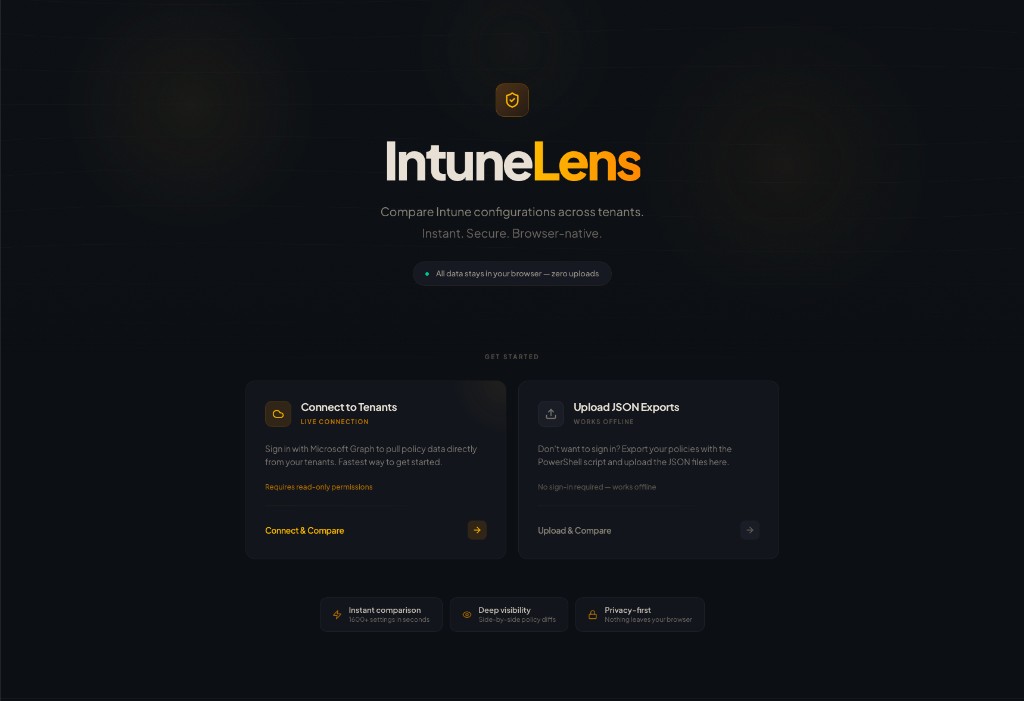
I built IntuneLens to compress that entire discovery phase into seconds. It compares 1600+ Intune settings across two tenants and gives you a clear alignment score so you know exactly where you stand before you touch a single policy. Nothing leaves your browser.
Table of Contents
- Getting Started
- The Comparison Report
- Supported Policy Types
- Privacy and Security
- Screenshot gallery
- Conclusion
Getting Started
IntuneLens gives you two ways to load tenant data. The live path signs you in with Microsoft Graph through an Entra enterprise application (the service principal your tenant sees) using delegated permissions: Graph returns Intune and directory data for the signed-in account only, within the same practical limits as the Intune and Entra admin centers—not a separate application-wide crawl beyond what that account can read. If consent for that app is blocked, you prefer not to sign in from the browser, or policy does not allow it, use JSON uploads instead; the comparison is the same once the data is loaded.
Connect to Tenants (Live)
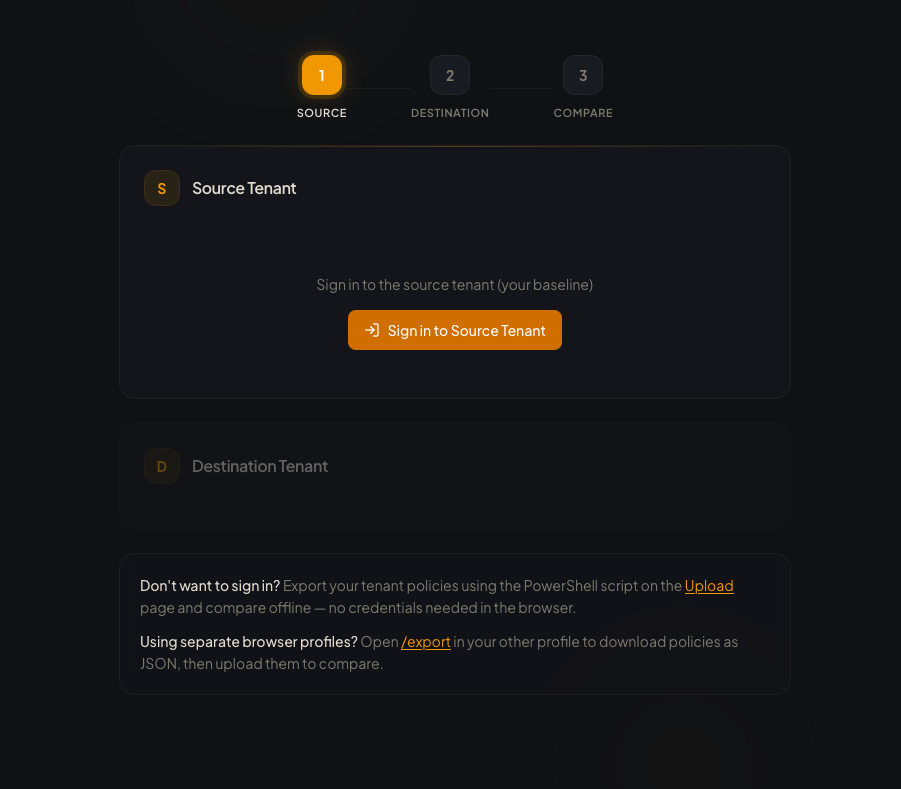
The fastest path when interactive sign-in and consent to the enterprise app are acceptable. Sign in with a Microsoft account for each tenant directly from the browser. IntuneLens authenticates via MSAL.js against Microsoft Graph with delegated permissions, fetches all supported policy types in parallel, resolves assignments and group names, and loads the Settings Catalog definitions to translate setting IDs into readable names.
Delegated Graph permissions (admin consent may be required the first time in a tenant): DeviceManagementConfiguration.Read.All, DeviceManagementManagedDevices.Read.All, DeviceManagementApps.Read.All, Group.Read.All
Upload JSON Exports (Offline)
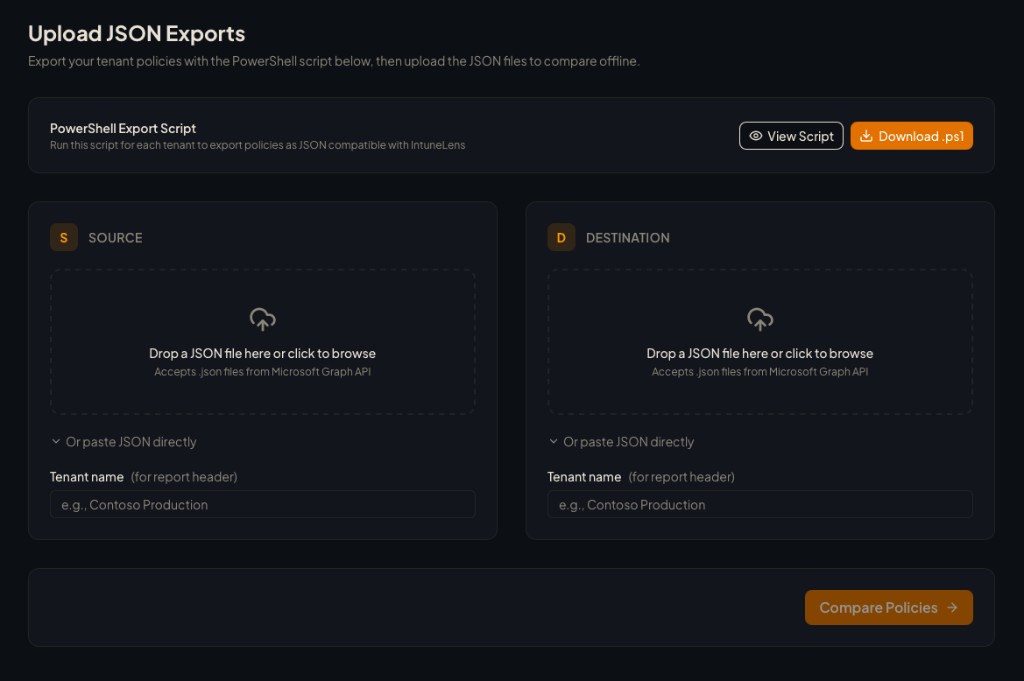
When you cannot or choose not to use the live sign-in or enterprise app path, this is the path: export policy data with PowerShell in an environment you already trust—your own workstation, a jump host, or the client’s tooling—and upload the results. You never wire the browser tool to Entra; you only bring files.
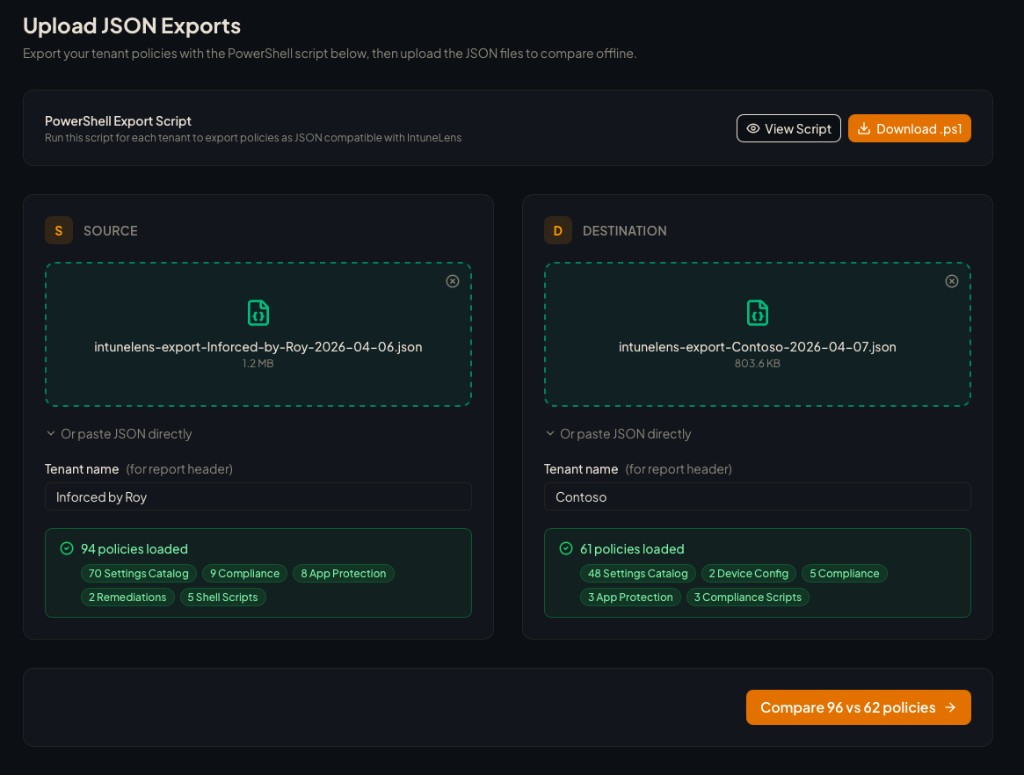
That same workflow also fits when interactive browser sign-in is not practical: Conditional Access, locked-down networks, break-glass procedures, or MSP playbooks that prefer artifacts over live sessions. IntuneLens includes a PowerShell export script you can copy directly from the tool. Run it against each tenant to generate a JSON file, drop both files in, and compare. It doubles as a way to keep historical snapshots or compare a tenant at different points in a project.
The Comparison Report
After loading both tenants, you land on the report page. This is where IntuneLens answers the real question: how big is the gap, and what do I need to do about it?
Alignment Score
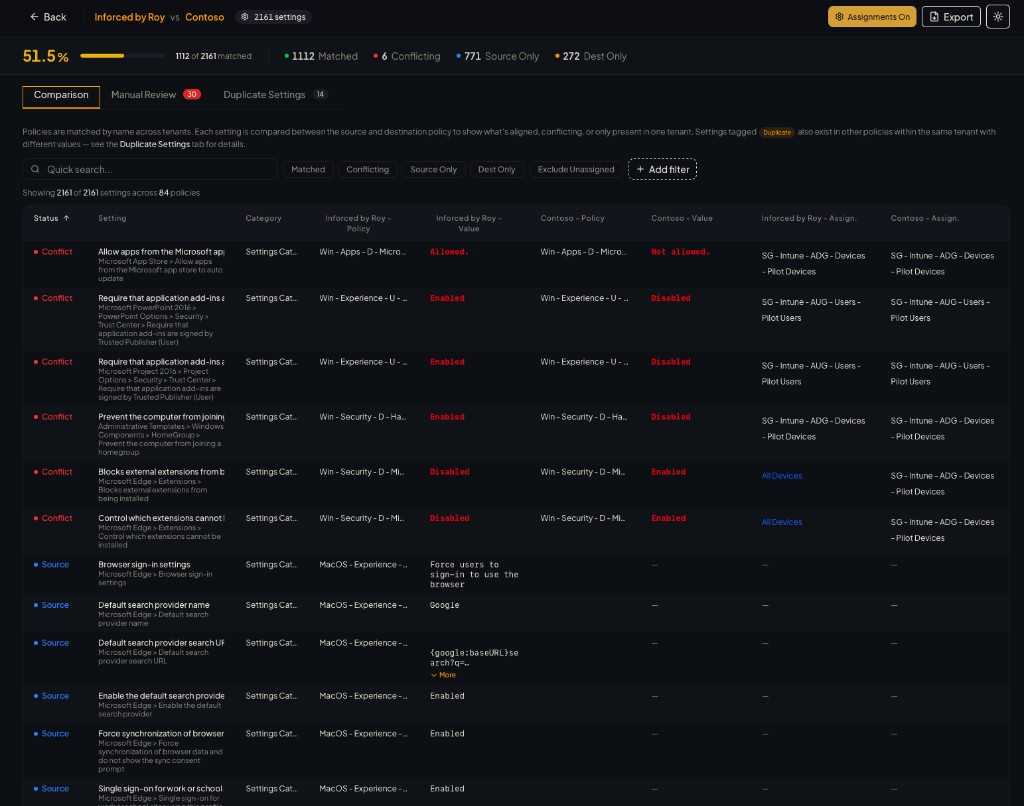
The alignment score is a percentage showing how well the two tenants match, color-coded from red through yellow to green. Below it, summary cards break down matched (green), conflicting (red), source only (blue), and destination only (amber) counts.
That single number is often enough to frame the conversation with a client or project lead. A 30% alignment tells a very different story than 85%.
Comparison Table
A virtualized table showing every setting: the status, setting name with category path, which policy it belongs to in each tenant, the configured values, and optionally assignments. Column headers use actual tenant names so you always know which side is which.
Assignments use color coding: include groups in the default color, exclude groups in red, and “All Devices” or “All Users” in blue. Assignment filters appear on a separate line so you can distinguish targets from conditions.
Filtering and Search
Quick search filters across setting names, policies, values, and assignments. Status chips toggle visibility per status type. Exclude Unassigned hides policies with no assignments.
The advanced filter builder combines filters on specific fields (setting name, policy, value, category, OS platform) with AND/OR logic. Useful for drilling into all conflicting Windows compliance settings, for example. The alignment score recalculates with your active filters, so you can check alignment for a specific subset.
Manual Review Tab
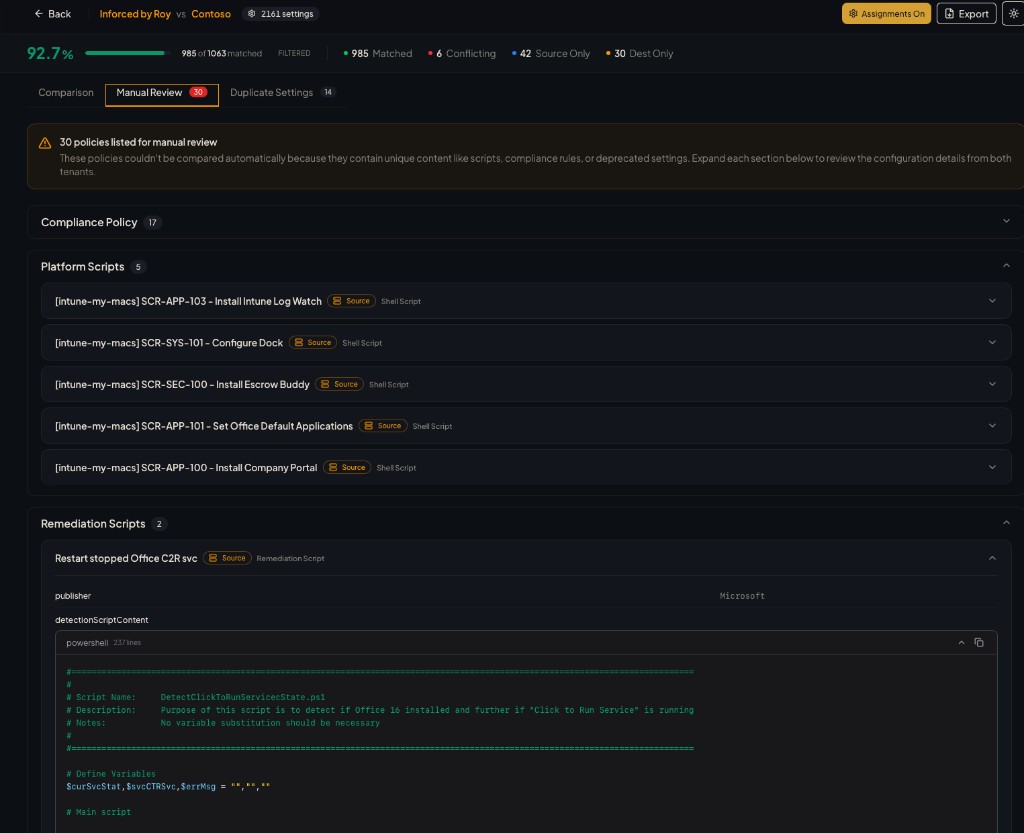
Remediation scripts, PowerShell scripts, shell scripts, and custom compliance scripts route here for side-by-side inspection. Scripts get syntax highlighting for PowerShell and Bash. Custom compliance rules are decoded from base64 and shown as formatted tables (setting, operator, type, expected value). Deprecated settings also surface with a warning.
Duplicate Settings Tab
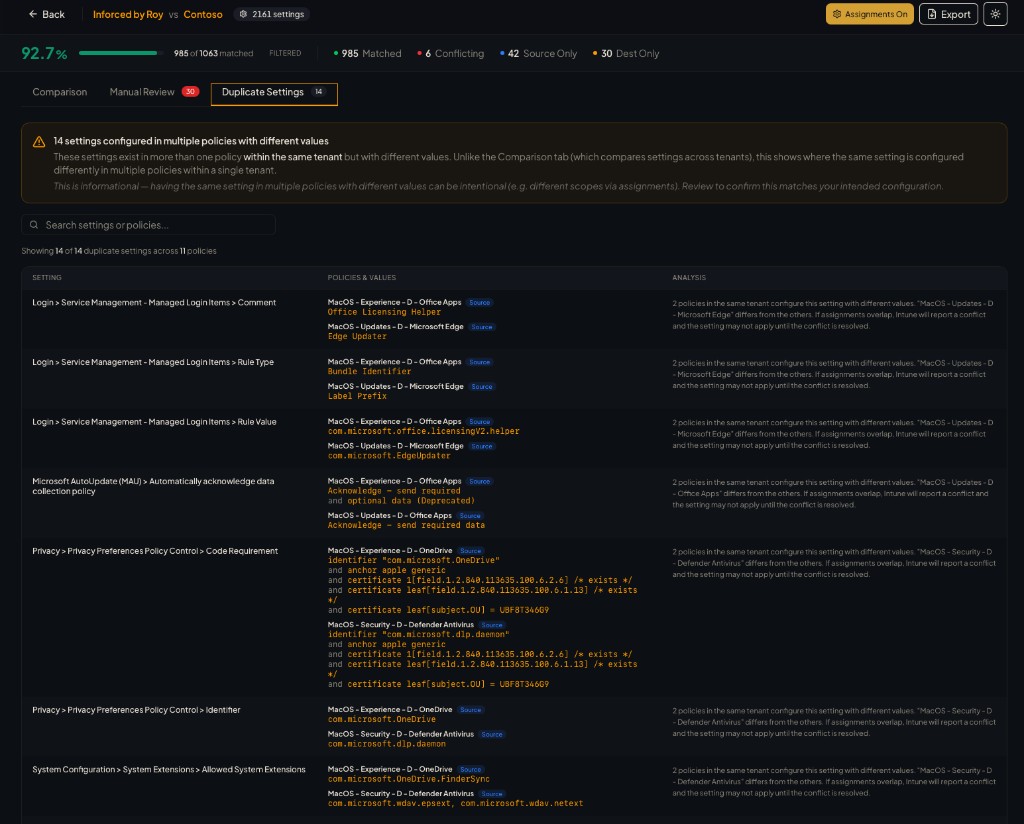
Flags settings that appear in multiple policies with different values. This happens often in tenants that have grown organically, and it is exactly the kind of thing you want to catch during onboarding.
Supported Policy Types
| Policy Type | What It Covers |
|---|---|
| Settings Catalog | Modern policies with full setting name resolution from the bundled catalog |
| Device Configurations | Legacy profiles mapped to friendly category names |
| Compliance Policies | Compliance rules including custom scripts and decoded rule tables |
| Group Policy (ADMX) | Windows Group Policy configurations |
| App Protection | MAM policies for iOS, Android, and Windows |
| App Configuration | Per-app configuration policies |
| Remediation Scripts | Detection and remediation scripts with syntax highlighting |
| PowerShell Scripts | Platform scripts with decoded script bodies |
| Shell Scripts | macOS/Linux shell scripts |
| Custom Compliance Scripts | Script content and decoded rules JSON |
For the Settings Catalog, IntuneLens bundles the catalog definitions so you see “Antivirus > Microsoft Defender Antivirus > Real-time Protection > Turn on real-time protection” instead of a GUID.
You can export the comparison as CSV or a styled HTML report to share with a client or attach to a project document.
Privacy and Security
IntuneLens runs entirely in your browser. Policy data goes from Microsoft Graph to your session, gets compared using Web Workers, and is displayed on screen. Nothing is sent to a backend or stored anywhere. Upload mode works the same: your JSON files stay on your machine.
Screenshot gallery
Home, connect, offline upload (empty and loaded), the comparison report with table and filters, Manual Review, and Duplicate Settings — in the same order as the walkthrough above. Use the arrows or swipe on a trackpad or phone; click an image or the expand control for full-screen view.
Conclusion
The hardest part of onboarding a new client tenant is not fixing the configuration. It is figuring out what the current state looks like and how far it is from where it needs to be. IntuneLens compresses that discovery phase from hours into seconds, so you can walk into the project with a clear picture and a strategy.
What this enables:
- Get immediate clarity on whether a client needs a full rebuild or just minor adjustments
- Compare 1600+ settings across 10 policy types without two portals side by side
- Surface unexpected configurations, duplicates, and deprecated settings before they become problems
- Use JSON exports when you skip or cannot use browser sign-in / consent to the delegated enterprise app, or when live access from the tool is blocked
Try it at intunelens.rksolutions.nl.